Building Agent Navigator: a desktop app to coordinate multiple CLI coding agents

Download at https://github.com/krishnasuraj/agent-navigator
Coding agents are good at working independently. Point one at a task and an agent will plan, execute, and revise its code with minimal hand-holding. The bottleneck, however, is you watching one agent churn through a task while three other tasks sit in your backlog, waiting for your attention.
If you’ve tried running a number CLI coding agents across multiple terminal tabs, you’ve experienced the tax that context switching imposes on your attention. Which tab had the agent that just asked for permission? Was it the refactor or the new feature? You tab through your open terminals, scan the output, and try to remember where you left off. Multiply by five agents and the context-switching overhead eats most of the productivity you gained from parallelism.
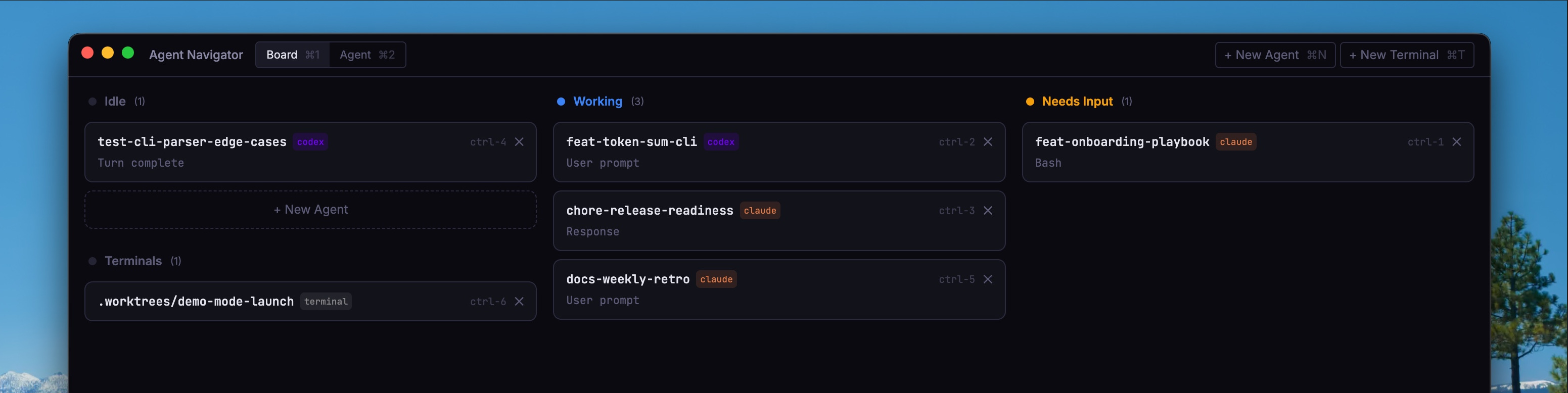
I built the Agent Navigator desktop app to explore how developers should interact with agents. The desktop application runs multiple coding agents side-by-side, each in its own terminal and isolated git worktree, with a kanban board that tracks every agent’s state: idle, working, or waiting for input. You can see at a glance which agents are blocked and can switch to them directly. Agent Navigator currently supports OpenAI’s Codex CLI and Anthropic’s Claude Code.
Agent Navigator is in beta, and I’d appreciate any feedback via email at ksuraj@mba2026.hbs.edu.
Product Philosophy
Three ideas shaped how Agent Navigator works:
1. Individual developers need multi-agent orchestration at their fingertips. As agents take on longer, more complex tasks, the productivity bottleneck shifts to the developer’s ability to direct, understand, and assess the work of several simultaneous agents. While managers can direct agents at a high level directly from Slack or from tools like Linear, a single developer still benefits from being able to direct several agents across branches of the same repo, with full context on what each one is doing.
2. The best way to understand the state of a multi-agent system is a spatial, kanban-style overview. Terminal tabs are sequential; you have to visit each one to learn anything. A board that groups agents by state gives you the full picture without any navigation, and directs your attention to the agents that are actually blocked on you.
3. Developers still need the terminal. CLI agents like Claude Code and Codex can take on large, complex tasks with high accuracy, but the developer needs to be able to drop into the full interactive terminal at any moment to course-correct, approve permissions, or take over. The app should wrap the terminal, not replace it.
The kanban board
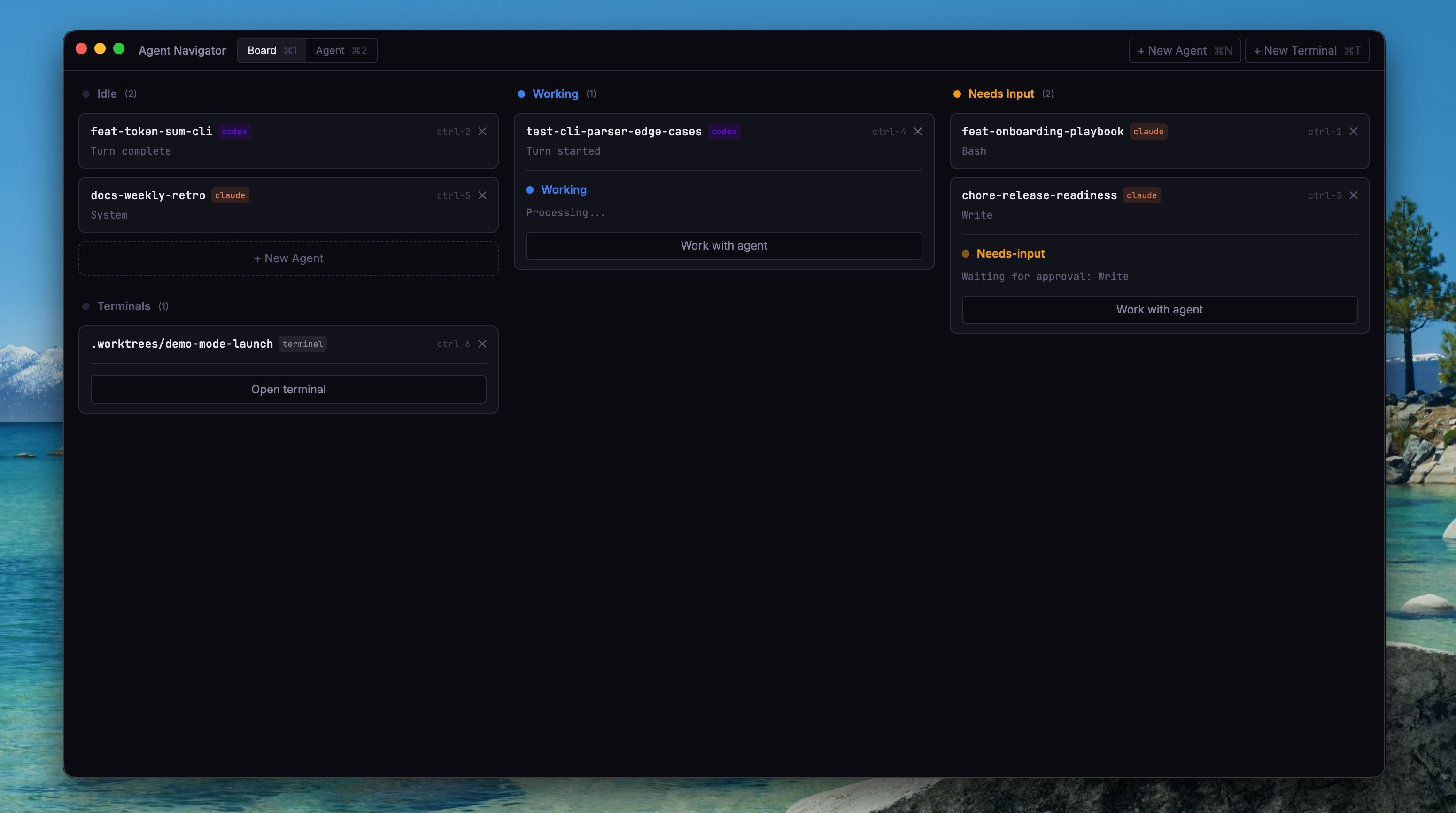
When managing several agents, the developer’s scarcest resource is attention. A spatial layout organized by state lets you allocate it efficiently: the board has three columns (Idle, Working, and Needs Input), directing your eyes to the agents that require action, while allowing you to take in the state of your team of agents in a flash. Agents in the “Idle” column have finished or are waiting for a new prompt. “Working” agents are mid-task: thinking, calling tools, or writing code. “Needs Input” agents are blocked on you, usually waiting for a permission approval.
Each card surfaces the agent’s branch name, tool badge, and a one-line status summary. Cards in the Needs Input column auto-expand with a button to jump straight into that agent’s terminal. The board allows you to triage your work quickly: scan the board, handle the blockers, and move on.
Don’t reinvent the terminal
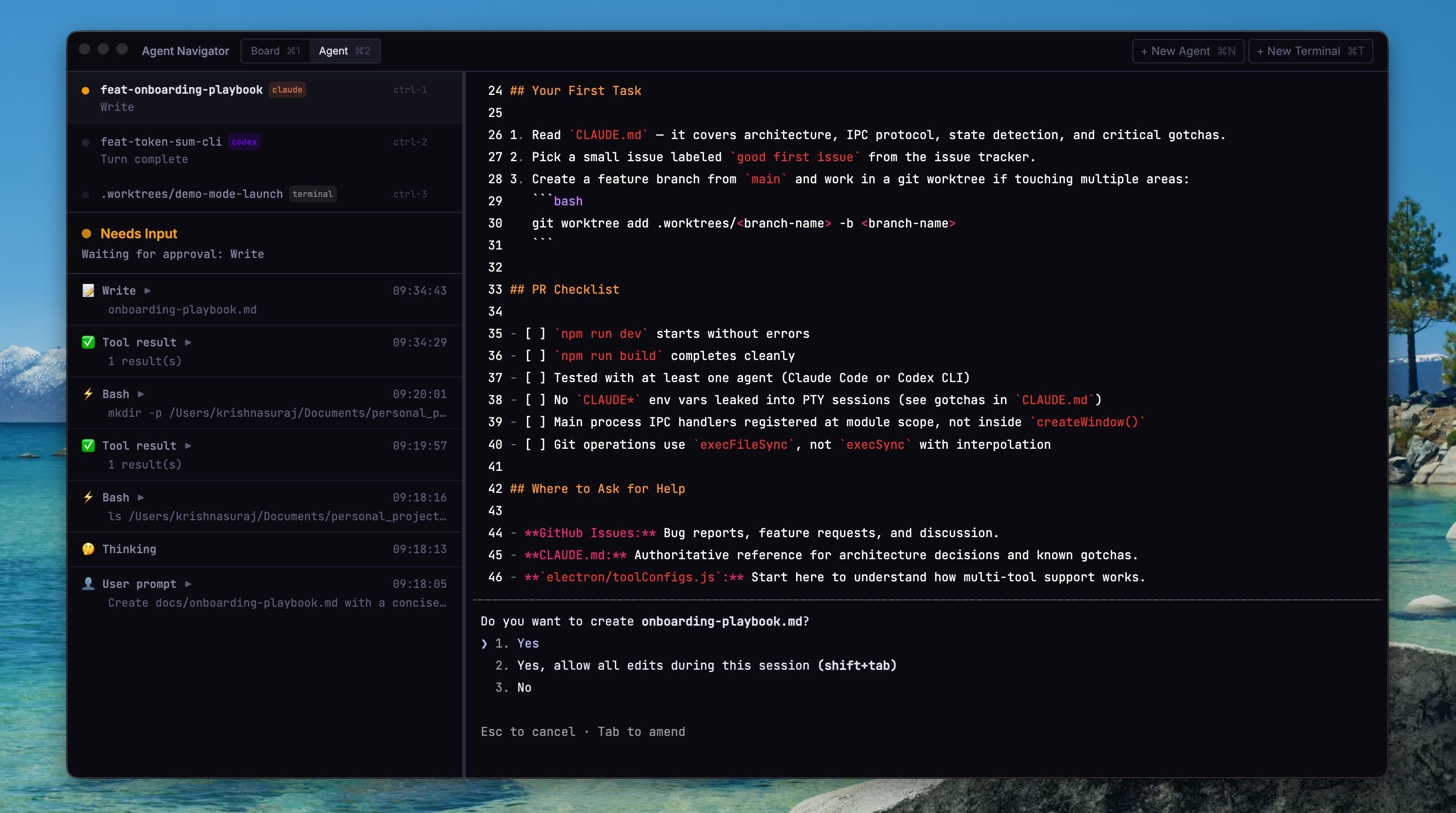
The tempting approach is to run agents headlessly and build a custom UI around their output. I tried this early on and abandoned it. The terminal gives developers fine-grained control when they need it: approving permissions, interrupting a bad path, inspecting diffs in real time. Abstracting that away means either reimplementing it poorly or taking control away from the developer.
Instead, every agent in Agent Navigator is a real interactive terminal rendered with xterm.js. You see exactly what you’d see in iTerm or Terminal.app: you type, approve permissions, interrupt with Ctrl+C. The app’s job is everything around the terminal: figuring out what each agent is doing, routing your attention to agents that need it, and managing the git worktrees that keep agents from stepping on each other’s files. Developers can also create native, non-agentic terminals for supporting work.
Git worktree isolation
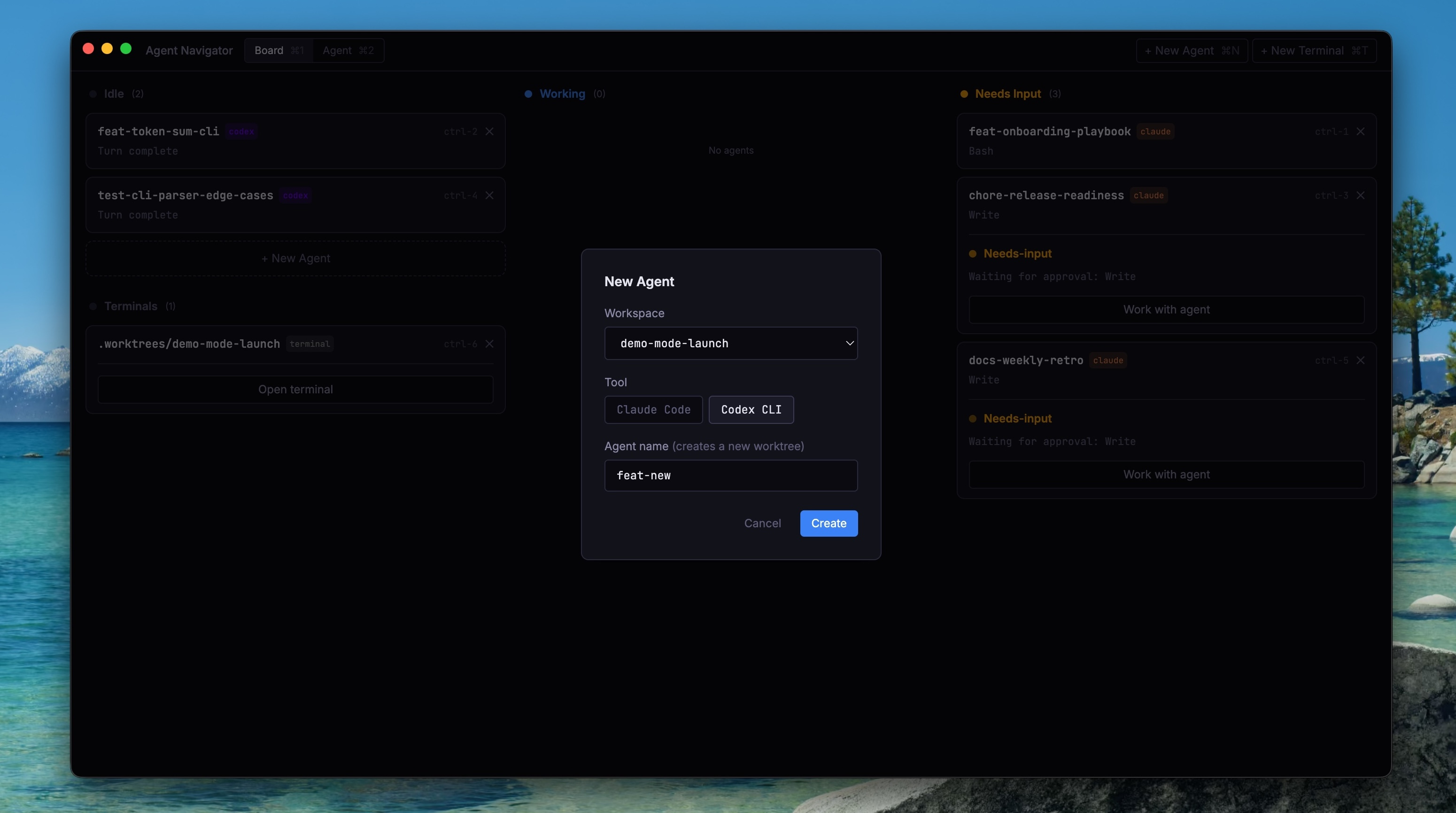
When you create a new agent in a git repo, Agent Navigator creates a git worktree: a separate working directory on its own branch, sharing the same .git history. Multiple agents can work on different features in the same repository simultaneously without file conflicts.
The New Agent modal (Cmd+N) asks for a branch name, creates the worktree, and launches the agent in it. When the session ends, you can keep the worktree on disk or remove it. If the branch has uncommitted changes, the app warns you before deleting. For non-git directories, agents run directly in the folder without worktree isolation.
Desktop notifications
The developer shouldn’t need to be looking at their terminal to know when an agent needs them. If the value of a multi-agent system is that agents work in the background while you do something else, the system needs to reach out to you when it needs attention, not the other way around. When an agent is blocked, the app fires a native macOS notification that deep-links directly into that agent’s terminal. You handle the permission prompt and return to what you were doing.

Keyboard shortcuts
Multi-agent orchestration adds overhead. Every interaction that requires a mouse click or a menu navigation is friction that compounds across sessions. Cmd+N creates a new agent, Cmd+T creates a new termianl, Cmd+1 and Cmd+2 switch between Board and Agent views, Cmd+Shift+O opens a new workspace. Ctrl+1, Ctrl+2, etc. jumps directly to an agent or terminal. The goal is that managing agents never pulls you out of flow.
How It Works
Everything above depends on knowing what each agent is doing in real time. The core challenge is state detection: is the agent idle, working, or waiting for input?
Both Claude Code and Codex CLI write structured session logs (JSONL files) to disk. Every tool call, response, and user prompt is a line in the log. Agent Navigator watches these files and derives state from the last meaningful event. If the agent just called a tool and the file is still growing, it’s working. If it called a tool and nothing has been written for five seconds, it’s probably waiting for a permission approval. If it finished responding and went quiet, it’s idle.
This is far more reliable than trying to parse what’s visible in the terminal, especially for agents like Codex CLI that use a full-screen interface where the raw output is difficult to read. But log files alone don’t capture everything — permission prompts in Claude Code are UI elements with no corresponding log event. To fill the gap, Agent Navigator also scans the terminal output for patterns like Allow/Deny prompts and thinking spinners. This hybrid approach catches state changes within seconds.
Session file tracking
Matching a log file to the correct agent session is surprisingly tricky. Claude Code creates short-lived log files on startup that are never actually used, and Codex organizes its logs by date rather than by project, so the app has to read into the file to figure out to which session it belongs. The solution is snapshot-based tracking: before spawning an agent, the app snapshots every existing .jsonl log file and its size, ignores all new file creation events, and only locks onto a file when it grows past its snapshot size. The same mechanism handles resumed sessions, where the existing file grows past its snapshot and the app reads from byte zero to load the full history.
The tool config abstraction
A tool config abstraction encapsulates everything that differs between Claude Code and Codex CLI: session file locations, JSONL schemas, PTY detection patterns, and state derivation logic. Adding a new coding agent means writing a config object with methods like findBinary(), deriveState(), eventToLogEntry(), and matchFileToSession(). Everything upstream consumes the normalized output.
The differences between tools are substantial. Claude Code embeds tool calls inside its response messages, while Codex CLI has explicit lifecycle events like task_started and task_complete. Codex’s full-screen terminal interface also makes its raw output diffcult to scan for patterns, so its state comes almost entirely from log events, while understanding the state of a Claude agent requires a mix of log parsing and terminal output scanning.
Architecture
The app is built with Electron, React 19, and Tailwind CSS v4. Each agent runs in a pseudoterminal (node-pty) rendered with xterm.js in the browser process. The Electron main process handles terminal lifecycle, log file watching, and git worktree operations. Terminals stay mounted in the background when you switch between agents, so there’s no lag or lost scroll position.
There is no database. All state lives in memory: sessions, JSONL events, and file snapshots stored in Maps and arrays. The JSONL log files on disk are the source of truth, and the app re-derives everything from them on the fly.
Try it
Agent Navigator is open source and available on macOS. You can install it via .dmg download. Updates happen automatically in the desktop app. You can also download via homebrew, or clone the repository and build yourself. It requires at least one supported agent (Claude Code or Codex CLI) installed on your machine.
The README in the repo has full installation instructions: https://github.com/krishnasuraj/agent-navigator